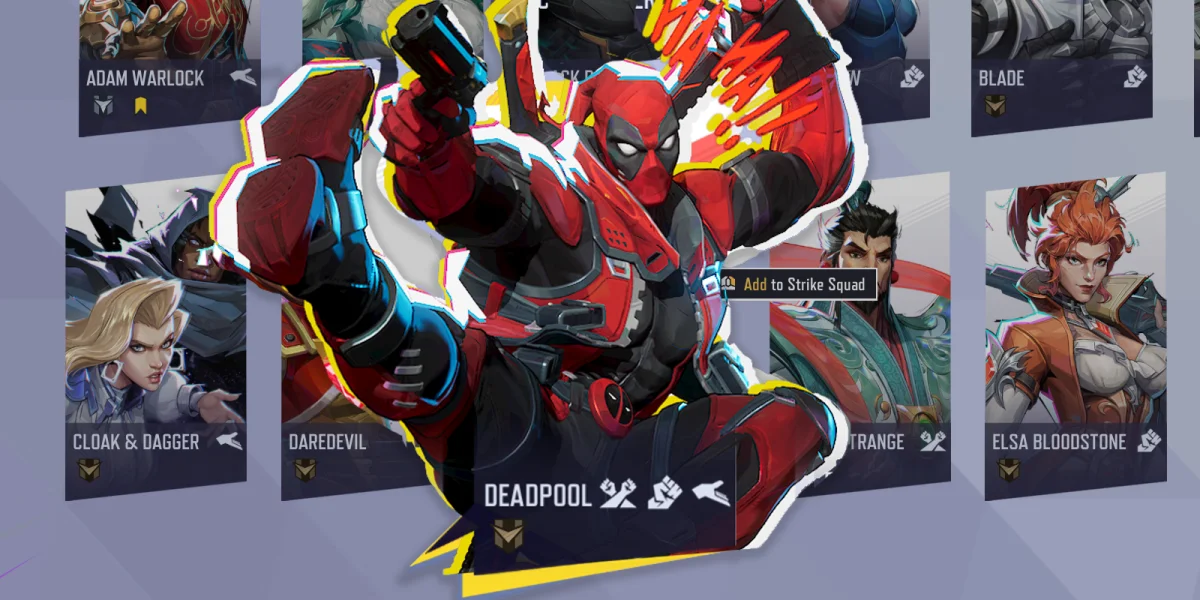
Deadpool is the first character in Marvel Rivals who can swap between all three roles: Vanguard, Duelist, and Strategist. Even with three different playstyles available, his core aiming stays the same no matter which role you pick. His dual Desert Eagles are hitscan weapons, so your bullets land exactly where your crosshair sits with zero travel time. His dual katanas cover close range combat, where crosshair placement is far less important. This guide breaks down the ideal crosshair setup, the reticle import code, recommended hero settings, and some advanced tips so you can aim well on every version of Deadpool.
The crosshair works at all skill levels. If you're newer to the game, the simplicity keeps your screen clean and your focus sharp. If you've been playing for a while, the precision is there for consistent hitscan tracking.
How Deadpool's Aiming Works
Understanding how Deadpool's weapons behave goes a long way toward picking the right crosshair. Your reticle should match his kit, and his kit revolves around two very different weapon types.
Recommended Crosshair: Center Dot
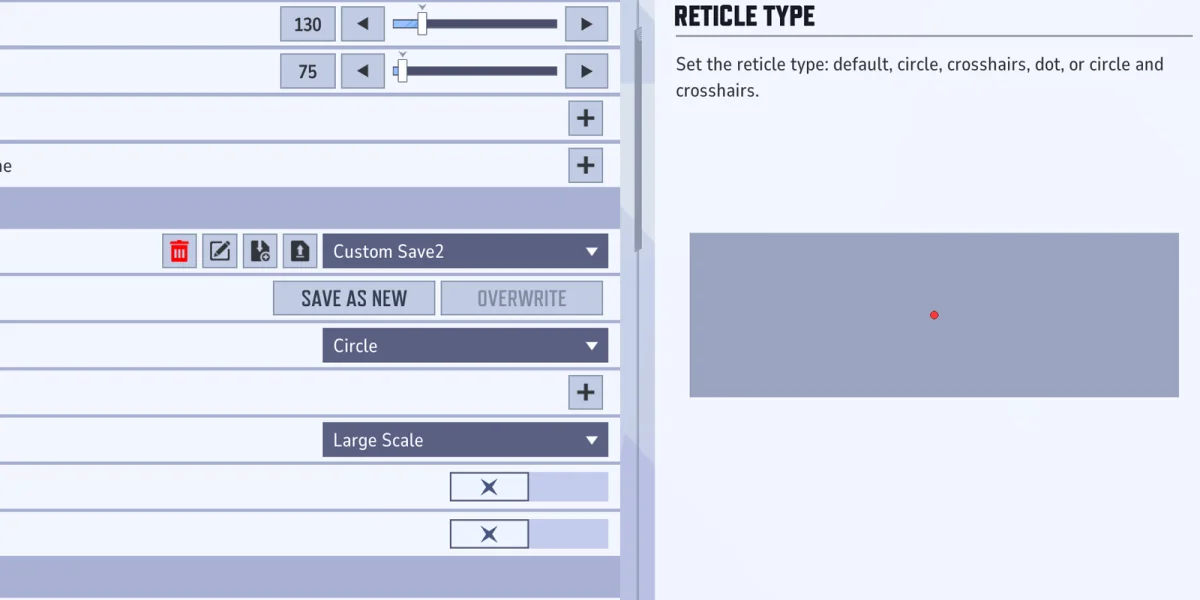
The best crosshair for Deadpool is a clean center dot, and this comes down to how hitscan weapons work.
A dot is the natural fit for hitscan. Deadpool's Desert Eagles hit exactly where you aim, so you want the smallest, most precise reference point on screen. A single dot gives you pinpoint accuracy without extra visual clutter blocking your view. No crosshair arms getting in the way, no expanding elements pulling your attention, no animations distracting you from tracking targets.
Complex crosshairs add unnecessary noise. Designs with long arms, expanding circles, or animated elements suit characters with spread or projectile weapons where you need to visualize an area of effect. Deadpool's hitscan guns don't benefit from any of that. In the middle of a hectic team fight, those extras just make aiming harder.
Melee doesn't need a fancy crosshair. When you switch to katanas, the dot stays on screen but becomes secondary. At melee range, you're focused on positioning and timing your slashes rather than pixel perfect aim. The Attack Range Hint setting (detailed below) handles spatial awareness for melee far better than any crosshair design could.
Reticle Import Code
Marvel Rivals lets you import crosshair configs directly with a code string. Copy the code below and paste it into the game's reticle import field to apply the recommended crosshair instantly:
1;0;6.0,100.0,0.0,29.0;100.0,0.0,100.0,100.0;50.0,100.0,0.0,0.0;100.0,45.0,100.0,100.0;0.0,0.0,0.0,0.0;33.0,92.0,0.0,33.0;1.0;100.0,0.0,100.0,100.0;0.0;5,3,1,1;0.0,0.0,0.0;How to import: Open your Marvel Rivals settings, go to the crosshair or reticle section, find the import option, and paste the code above. The game applies all the settings automatically.
If you'd rather set things up by hand or want to tweak individual values, the full breakdown is in the next section.
Full Crosshair Settings Breakdown
Below is every crosshair setting and its recommended value for Deadpool. Settings marked with a dash (-) don't apply to the dot reticle type and can be left alone.
Core Reticle Settings
| Setting | Value | Explanation |
|---|---|---|
| Reticle Type | Dot | This is the foundation of the setup. Choosing the dot type removes crosshair arms and circles entirely, leaving just a center dot on screen. |
| Reticle Animation | Off | Turning off animation stops the crosshair from expanding, contracting, or shifting in response to your actions. Your aiming point stays perfectly static and predictable, which is exactly what you need for precise hitscan tracking. |
Dot Settings
| Setting | Value | Explanation |
|---|---|---|
| Dot Width | 29 | This controls the dot's size. At 29, it's large enough to see clearly during fast gameplay but small enough to stay precise at medium and long range. If it feels too big on your monitor, lower it a few points. If you keep losing it in chaotic fights, bump it up slightly. |
| Dot Opacity | 100 | Full opacity keeps the dot visible against any background. A partially transparent dot is just harder to track, so there's no upside to lowering this. |
| Dot Outline Width | 0 | No outline around the dot. An outline increases the dot's perceived size and can reduce precision. Keeping it at zero gives you a compact, clean aiming point. |
| Dot Outline Opacity | 100 | The outline width is set to zero, so no outline is actually visible. This value sits at 100 as a default in case you ever add an outline later. |
| Dot Blur | 0 | No blur applied. Blur softens the dot's edges, making it harder to pinpoint exact center. A sharp dot gives you the clearest reference point. |
Crosshair Arm Settings (Not Applicable)
Since the reticle type is set to Dot, the following crosshair arm settings have no visible effect. They're listed for completeness if you want to experiment with hybrid designs later:
Crosshair Width, Crosshair Opacity, Crosshair Outline Width, Crosshair Outline Opacity, Crosshair Blur, Crosshair Radius, Crosshair Length, and Crosshair Angle are all either set to dash/not applicable or zeroed out.
Circle Settings (Not Applicable)
Circle settings also don't affect a dot only reticle:
Circle Width, Circle Opacity, Circle Outline Width, Circle Outline Opacity, Circle Blur, and Circle Radius (set to 0) have no visual impact with this config.
Dot Color
Crosshair Color and Circle Color are both not applicable since those elements are disabled.
Advanced Crosshair Tip: Outer Ring
The clean dot above is the main recommendation, but some players like adding a subtle outer crosshair ring or arms around the dot. This variation serves a specific purpose tied to Deadpool's abilities:
Hazardous Hijinks dash range visualization. In katana mode, Deadpool's Hazardous Hijinks ability (RMB) dashes him forward to slash enemies on contact. An outer crosshair with the right radius can help you judge if a target is within dash range before you commit. It makes it a bit easier to aim ahead of moving targets and close the gap accurately.
Headshot! AoE estimation. In Desert Eagle mode, Deadpool's Headshot! ability (RMB) throws his avatar forward like a boomerang, damaging enemies along its path before returning. The outer crosshair radius can roughly represent the Headshot! area of effect when you aim it at the ground near enemies. Aiming it at their feet instead of behind them lands more consistent damage, and the outer ring gives you a visual sense of the impact zone. This is especially useful when throwing Headshot! while airborne or jumping off walls.
Recommended Hero Settings
Beyond the crosshair itself, several hero specific settings directly affect how Deadpool plays.
Mouse and Sensitivity Settings
| Setting | Recommended Value | Details |
|---|---|---|
| Mouse Horizontal Sensitivity | 3 to 5 | This range works as a starting point for Deadpool. Since his Desert Eagles are hitscan, you want a sens low enough for precise tracking but high enough to react quickly in close range katana fights. Start at 3 if you lean toward precision, or 5 if you value faster turning. Adjust from there based on feel. |
| Mouse Vertical Sensitivity | 3 to 5 | Match this to your horizontal sensitivity for consistent aim. Running different horizontal and vertical values creates unpredictable diagonal movement that messes with muscle memory. |
| Invert Horizontal Look | Off | Standard setting. Only turn this on if you specifically prefer inverted horizontal controls. |
| Invert Vertical Look | Off | Standard setting. Only turn this on if you prefer pushing the mouse forward to look down. |
| Mouse Smoothing | Off | Mouse smoothing adds artificial interpolation to your movements, making them feel floaty and less responsive. Turning it off makes your crosshair respond directly to your hand movements, which matters a lot for hitscan accuracy. |
| Mouse Acceleration | Off | Acceleration changes your sensitivity based on how fast you move your mouse. The same physical movement can produce different results depending on speed, and that kills consistency. Turning it off gives you a 1:1 relationship between hand movement and crosshair movement at all times. |
| Center Mouse in Background | Off | Standard setting for most players. |
| Raw Input | Off | This determines if the game reads mouse input directly from hardware or through your OS. The recommended setting is Off, though some players prefer to experiment with enabling it depending on their system. |
Deadpool Specific Settings
| Setting | Recommended Value | Details |
|---|---|---|
| Dual Pistols Ultimate Ability Target Sensitivity | Experiment | This controls your sensitivity specifically during Deadpool's pistol Ultimate. Since Deadpool is still relatively new, the community is still figuring out the sweet spot. Experiment with settings that feel comfortable during his Ultimate and adjust as you get more familiar with the ability's targeting. |
| Dual Pistols Ultimate Ability (Upgrade) Target Sensitivity | Experiment | Same idea, but for the upgraded version of the pistol Ultimate. Test different values and settle on what feels right for your playstyle. |
| Attack Range Hint | On | This is one of the most important settings for Deadpool. When turned on, it shows a visual indicator telling you when enemies are within melee striking distance of your katanas. Since your crosshair matters less in melee, this fills the gap by letting you know exactly when your slashes will connect. Keep it on at all times. |
Display Settings
Allied Health Bars: On. This is especially valuable when you're playing Deadpool in his Strategist (support) role, but it helps across all three. Seeing ally health bars lets you decide when to shift toward a supportive playstyle, when teammates need help, and when your team is healthy enough to push a fight.
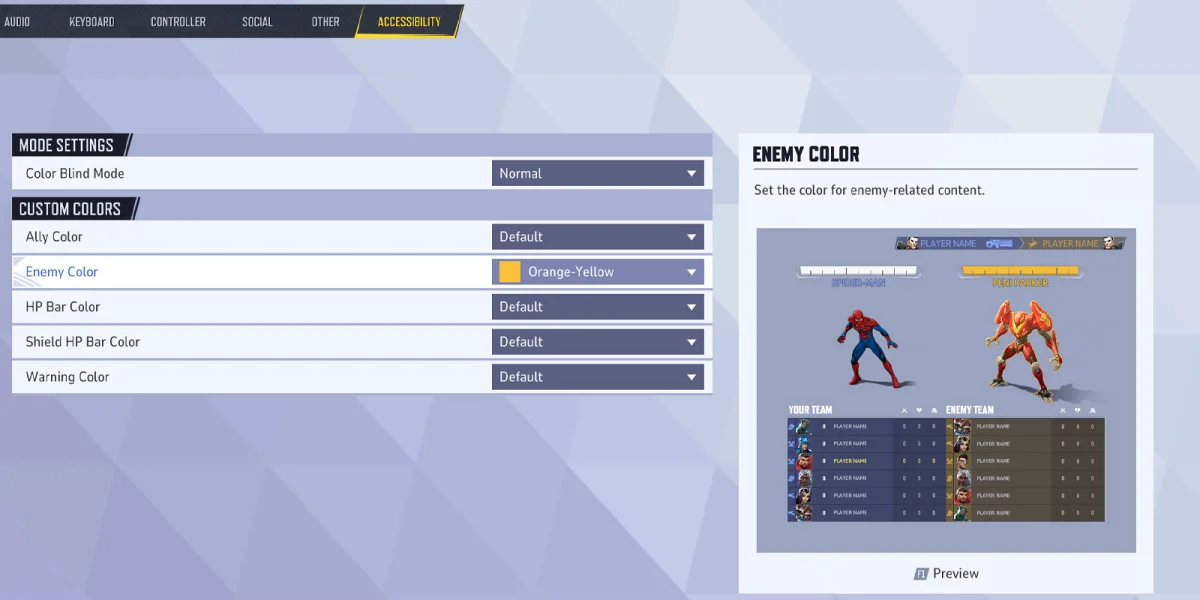
Enemy Visibility: Outline Color
Marvel Rivals has an accessibility setting that can make a real difference in tracking enemies during messy team fights. It's separate from your crosshair but directly tied to how well you can spot targets.
How to change it: Go to Settings, then Accessibility, and find the Enemy Outline Color option.
Recommended change: Switch it to Yellow. Yellow creates strong contrast against most map backgrounds and character models, so enemies are easier to spot and track. During large fights with tons of abilities and visual effects on screen, this small change goes a long way.
Quick Setup Guide
For a fast setup, follow these steps:
- Open Marvel Rivals and go to Settings.
- Navigate to the crosshair or reticle section.
- Use the import function and paste the reticle code from above. This applies all recommended settings instantly.
- If you prefer doing it manually, set Reticle Type to Dot, Dot Width to 29, all opacities to 100, all outlines and blur to 0, and Reticle Animation to Off.
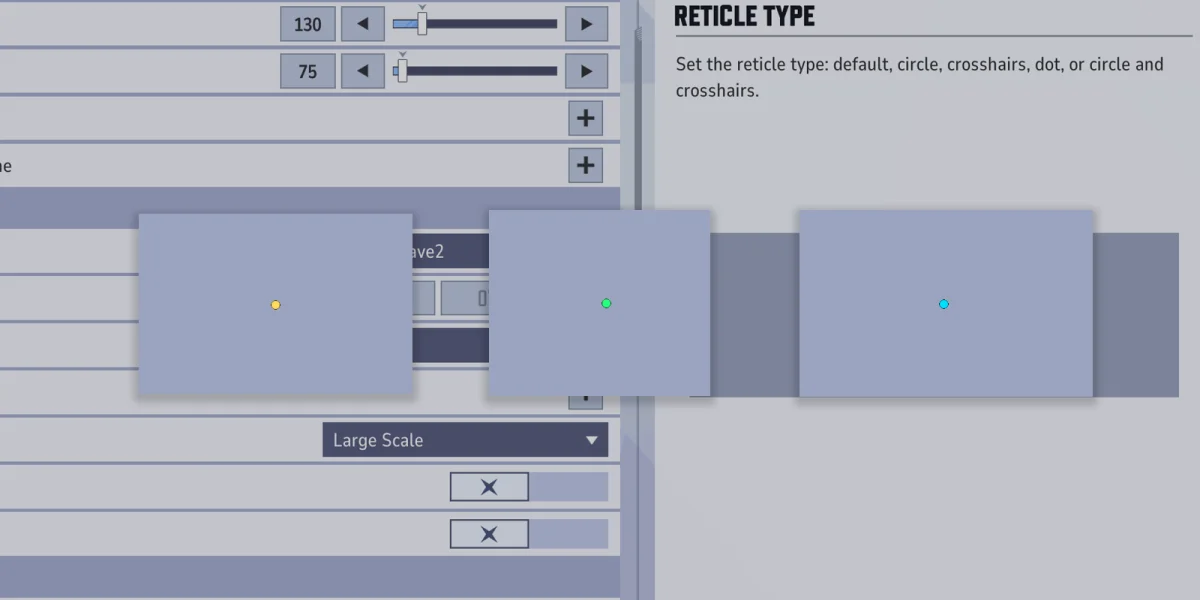
- Pick a dot color with high visibility on most maps. Bright green, cyan, magenta, or yellow all work well.
- Go to Deadpool's hero specific settings and turn Attack Range Hint to On.
- Set mouse sensitivity between 3 and 5 for both horizontal and vertical, then turn off Mouse Smoothing and Mouse Acceleration.
- Optionally, head to Settings then Accessibility and change Enemy Outline Color to Yellow for better target tracking.
- Since the game treats each Deadpool role as a separate character for settings, check that your crosshair is applied to all three roles (Vanguard, Duelist, and Strategist). You may need to apply it individually to each one.
- Test everything in the practice range before jumping into matches. Adjust dot size and sensitivity until your aim feels natural.